Short answer, YES. Please go thru below to find out the details around achieving this.
Even though I have talked about canvas app, but the below redirection also works from another external application in the same manner.
Background
One of the requirement was to update information in Dataverse tables from canvas app. One option, off course, is to add the edit form in the canvas app but we will not be able to leverage all the Dataverse capabilities like duplicate detection, client-side scripting etc. within canvas app edit form.
Possible Solutions
The following 2 solutions were explored to the above problem which comes with its own challenges and issues.
Option 1: Open record in device Default Browser from Canvas App
We know that model driven apps are responsive hence to open a table form from a canvas app we can use Launch command to redirect the user from canvas app to the model driven app table form. This opens the form in the default browser of the device. For this, we must first formulate the URL required to open specific table form in an environment.
Please follow the MS learning site to learn more about the Launch Command and also refer the following link to understand how to generate Dataverse URL to open the table form in the default web browser of the device (mobile or desktop).
Example: Launch(“https://Environment_URL/main.aspx?appid=42492837-893d-ec11-8c63-000d3a493e9a&pagetype=entityrecord&etn=contact&id=6c339400-fe19-ec11-b6e6-6876bd8de403”)
Problem faced with Option 1 solution – When we implemented the above solution, we faced some issues related to unsupported features in the browser especially safari on the tablet.
Workaround to the above problem faced with Option 1 solution – is to change the default browser of the user’s device which you have strategically decided to support for your model driven application.
Or review the below option 2.
Option 2: Open record in D365 Mobile App from Canvas App
When working on a canvas app in mobile or tablet and if you have a functionality to open a Dataverse table record to edit information then it would be ideally good to open D365 mobile/tablet app with that record. So, I started to explore our options to be able to redirect user to the D365 mobile client from canvas app.
Using Mobile app Deep Linking we can launch a mobile application from a browser running on a mobile / tablet. Deep Linking uses URL Scheme defined for the mobile application. Similarly D365 mobile app defines URL scheme as mentioned in this MS Learn site – Open specific form, view, dashboard in Mobile Client using URL.
URL Scheme to open Dataverse record with params: ms-dynamicsxrm://?pagetype=<VALUE>&etn=<VALUE>&id=<VALUE>
The above URL scheme can be used along with Launch command in canvas apps to redirect the app –

Now let us look at some of the challenges we encounter with Option 2 –
Issue # 1 – The above URL scheme doesn’t allow to specify Power platform environment. This causes inconvenience to the user who has access to several environments. Basically, the above redirection to the D365 Mobile app tries to open the Dataverse record in the recently accessed environment. In my scenario I had previously opened Test environment and I was trying to redirect from my canvas app to a record in my development environment which doesn’t work.
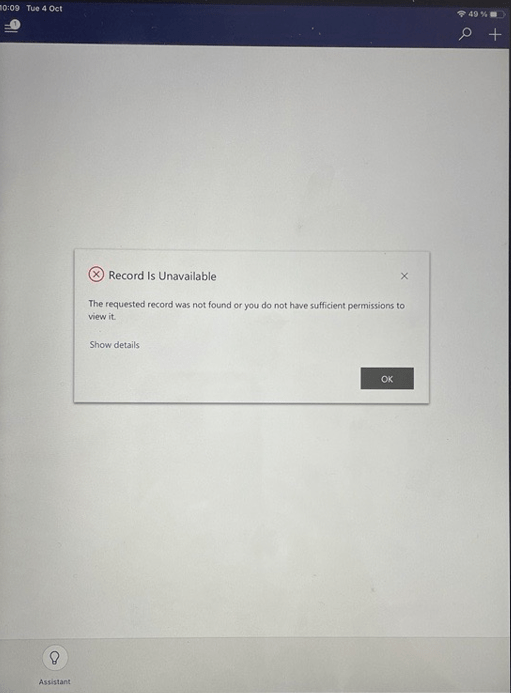
So, I have raised an Idea with Microsoft to allow defining environment in the URL Scheme. Here is the Idea if you would like to vote it – Power Apps Idea
Issue # 2 – Also as observed, if the D365 Mobile app is not installed on a device then nothing happens when the user tries to redirect using the above URL.
Issue # 3 – This redirection will not work if you access the canvas app from browser. The canvas app will open a new tab with blank URL.

Conclusion
We can, however, build a combination of option 1 and option 2 solutions by identifying if the user has used the canvas app from the desktop browser or the mobile / tablet app by verifying the Parent.Size value.
Follow the MS learning site Screen Sizes to understand different screen based on the client interface (desktop, phone, tablet).
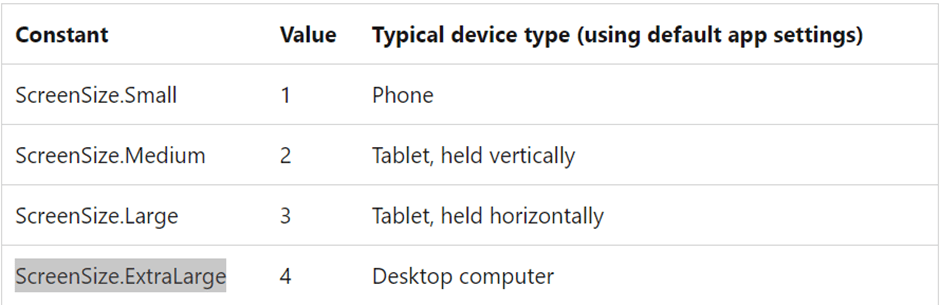
So, if the Parent.Size = SreenSize.ExtraLarge (which is 4), means that the canvas app is opened in desktop browser else it should open another client interface (Phone / Tablet)
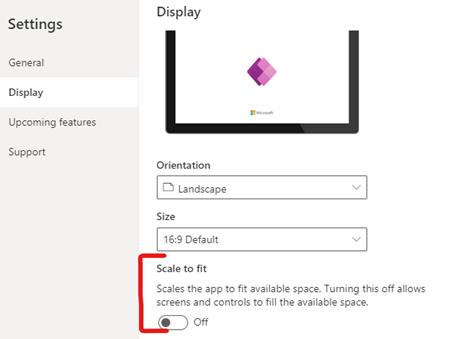
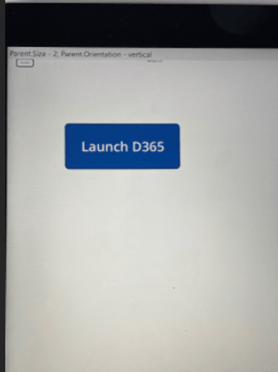
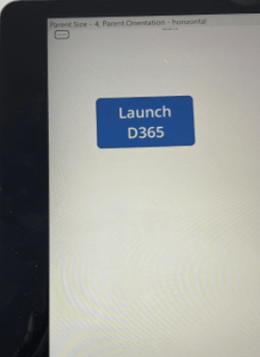
Ensure to turn off Scale to fit property in the settings of Canvas app because it will affect the Screen Size property value and if Scale to fit setting is turned on then the Parent.Size is 4 for both tablet app and browser on desktop hence the above check will not work. Refer to the screenshots below to get a good understanding of the setting.
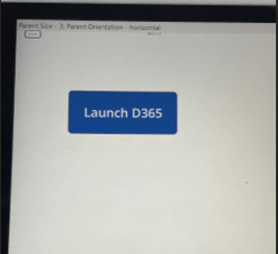
The below screenshots are from a sample canvas app opened in a tablet device –
Scale to fit – Off
Scale to fit – On
 Power Platform