Background
Mainly in any project we start encountering performance issues because of inadequate understanding of the customer expectations with regards to how long a process can take to run. Which is a result of incorrectly / not documenting Non-functional requirements (NFRs). If the NFRs are not documented then we probably miss the train to include those constraints in the development cycle. Non-functional requirements can be categorized as follows –
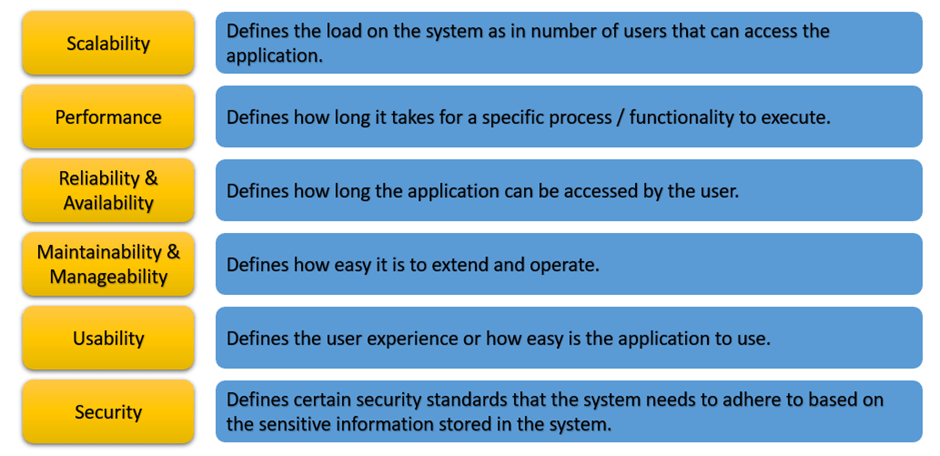
In my experience, it so happened that performance related requirement was inadequately documented meaning that the overall end to end process execution time was noted in the requirements however the performance constraint to the individual functional pieces never got tagged to the user stories.
This led to an ambiguity in the design and development work which ultimately led to the poor user experience.
Or if the performance constraints are not documented at the early stage then at least have general development principles documented which will guide the team to keep track of the performance of each functionality.
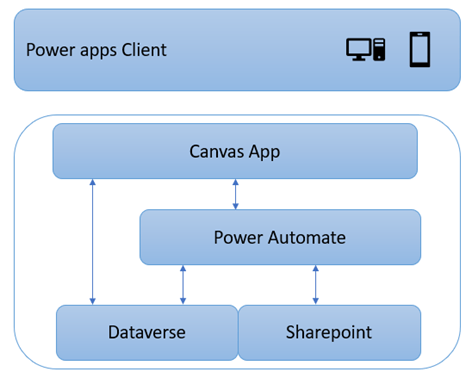
Canvas App Solution – Components Blueprint
The below listed suggestions to address performance issues is mainly based on the canvas app solution that uses the below components.
Suggestions
Off course, the first and foremost thing to do is to follow the best practices defined for canvas app development and imbibe the same in the development WoW (Ways of Working). Below link gives us a great insight and head start to build a better performing canvas app.
Troubleshooting Performance issues in canvas app
Apart from the Microsoft suggested tips mentioned above, I have following suggestions that will help improve the performance –
Delegation with Dataverse Views – Although delegation is mentioned in the MS Link above, I wanted to highlight a specific scenario using Dataverse views while executing Lookup / filter command as it will help retrieve minimum records that is required for the operation of the process, and this will delegate filtering and sorting operations to Dataverse which results in lesser computing efforts on canvas app.

Avoid repetitive lookup, filters – Generally this is a common pattern where a developer will try to extract the same dataset several times using Lookup or Filter commands. To avoid this we can create local collection of datasets. We can collect the required dataset (on App.Start or Screen.Visible) to get the designated dataset and use the collection to work within the process.
Keep It Simple – When designing the user experience of the app, ask yourself if a particular step / user action is required / important for user experience or end to end process flow. If the answer to the above question is clearly no or if there is slight argument that it can be avoided, then do not include that step / user action. For example, do we need that extra click to achieve the functionality or can we directly navigate the user to the step or should first show the details to the user and then ask the user to navigate to the next steps etc.
Patch directly to Dataverse – Sometimes based on the laid-out development principles the developer might think to put every business logic in the power automate flow which might not always be in the best interest hence we should first try and leverage other mechanisms as well to achieve the same functionality. For example, use Patch command to directly create / update record unless it is truly necessary to define more complex logic in the Power Automate flow.
App Checker – Ensure all the performance warnings that are listed in the App checker are addressed.
Optimize Power Automate flows – There are several ways to achieve this, and it mainly can depend on the functionality that is being built in the Power Automate flow but a few suggestions to review –
- Return to canvas app as soon as possible – It could happen that we have a complex flow logic but for canvas app we might not need to wait till entire flow is executed. So, decide what is important for the user to proceed in the app and design a parallel step in the flow.

- Minimize the number of actions in a flow – Utilize the features available in any flow action to minimize the number of flow actions defined in the flow. For example – when working with Dataverse use “Expand Query” to get information from a related table instead of definition a second get record action etc. Also try to use variables and compose actions only when it is necessary and not just for convenience.
- Designing Data model – It is very important to have a good data model because it can impact how a specific data is being access either by canvas app or user by adding layers of complexity. Basically if you have a lookup (1:N relation between Table A and Table B) in the specific Dataverse table then we can use “Extended Query” to retrieve the information from the lookup record however if you have defined N:1 relation (between the same Table A and Table B) then you cannot use Expand Query but instead have to add a List records action and go thru the loop which will in-turn add to the execution time.
- Use Low Code &/ Pro Code Practices – Sometimes it is necessary to review the general principle that is laid out in the project to use low code development approach. This principle ends up in developer creating power automate flow to achieve a functionality which on the contrary can give better performance benefits if the same functionality was developed using pro code practices. For example, let’s say we have a 1:N relation between Table A and Table B and functionality is to create those N records in Table B. For this if we go with Power Automate flows then we will have to loop thru each record to be created. So, in the Power Automate flow approach the performance is variable depending on the number of records to be created. However, if the same must be developed using custom workflow action that can called from Power Automate flow, then we can leverage multi-threading and parallelism to create those N number of records with better performance.
- Use Process Insights –This is a preview feature that provides good analytics to understand average time taken on each action with multiple runs/executions along with off course the flow execution to understand time taken, this will guide on further actions to improve performance
 Power Platform