Recently I tried to turn on Unified Routing in a trial environment which is not as straight forward as documented in the Provision Unified routing for customer service. I got the error “Unified Routing was unable to provision. Please try again or contact Microsoft Support” basically asking to create a support ticket from the Power Platform Admin center. I did create a support ticket because the error was not very clear on why it was occurring and there is not much troubleshooting information on the internet regarding this issue.
Based on the MS Learn site to Provision Unified routing for customer service I tried for Customer Service Admin Center and Customer Service Hub apps in vain with no luck. I also followed suggested posted here, again no luck.
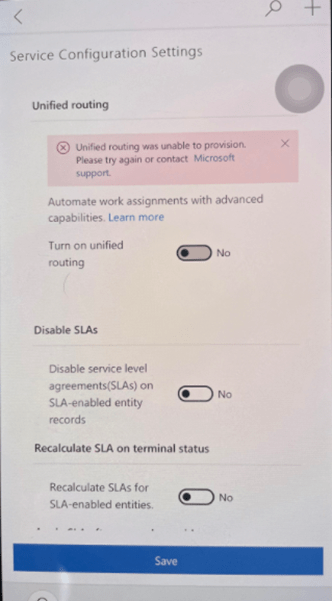
However, after a few try outs and hair pulling to identify the root cause, this is before MS support team contacted, I thought of trying a different approach by following the below steps –
- Open Customer Service Hub application
- Navigate to Service Management area >> Unified Routing >> Record Routing
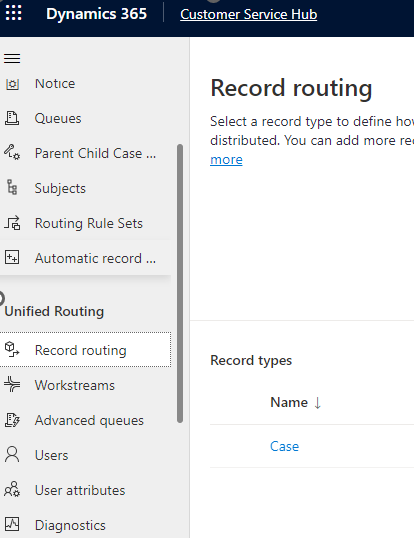
- Select “+ Add” to add new Record Types
- Once the record type is added as shown in the above screenshot, then navigate to Workstreams (just below Record Routing in the site map as shown in the above screenshot)
- Select “+ New Workstream” and choose the required input and Select Create
- While the Workstream is created, it also prompts to Turn on Unified routing, Select Ok to turn on the Unified Routing
- SUCCESS!, now you can see that the workstream has also been created and the Unified Routing has also been turned On.

 Power Platform