When you schedule a work order, a Bookable Resource Booking (BRB) record is created which is used by the field technicians to work on the work order. The BRB record holds all the products, services and the service tasks that will help technicians to perform the required actions in the customer location.
To be able to serve the SLAs to the customer, D365 Field Service app also helps us identify the time required to travel to the service location. This is out of the box functionality to calculate Miles Traveled and Travel Duration based on the logic that I have explained below.
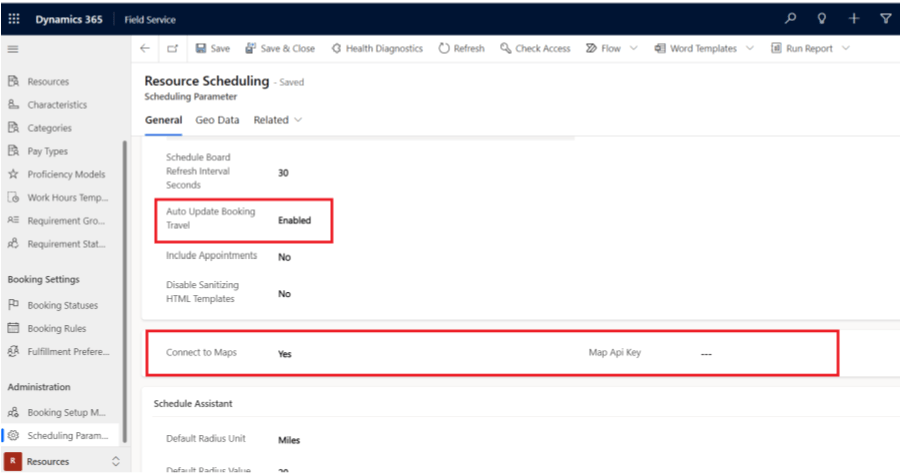
Before we proceed with the calculation ensure that the environment is connected to maps and geo-coding is enabled in Scheduling settings as mentioned in the MS Learning site.
Now, we must define the Start Location for every Bookable Resource based on which the Miles Traveled and Travel Duration is calculated while booking the work order.
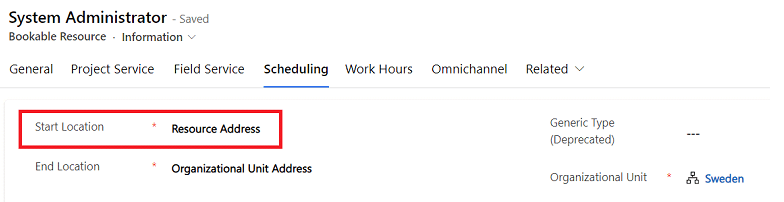
There are 3 options that we can choose for the Start and End Location.
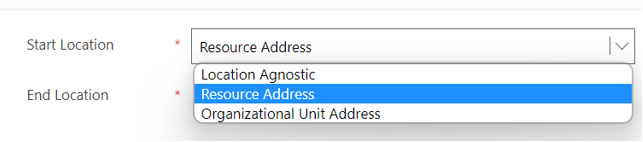
Apart from this, as the above options suggests, the calculation also, obviously, considers the addresses defined at the different records that are associated with the work order like service location, resource address and resource’s organization unit address.
To help my explanation below I have set the following addresses –
| Type | Address | Longitude | Latitude |
| Resource Address | Kalaburagi, Karnataka 585 105 India | 76.61231 | 12.29852 |
| Organizational Unit Address | Gothenburg, Sweden | 11.88969 | 57.67205 |
| Service Location 1 | Sollentuna Stockholm County 192 32 Sweden | 17.97546 | 59.44507 |
| Service Location 2 | Sollentuna Stockholm County 192 32 Sweden | 17.96575 | 59.44887 |
| Service Location 3 | Sollentuna Stockholm County 192 32 Sweden | 17.97512 | 59.44382 |
Let’s review each option –
Organizational Unit Address
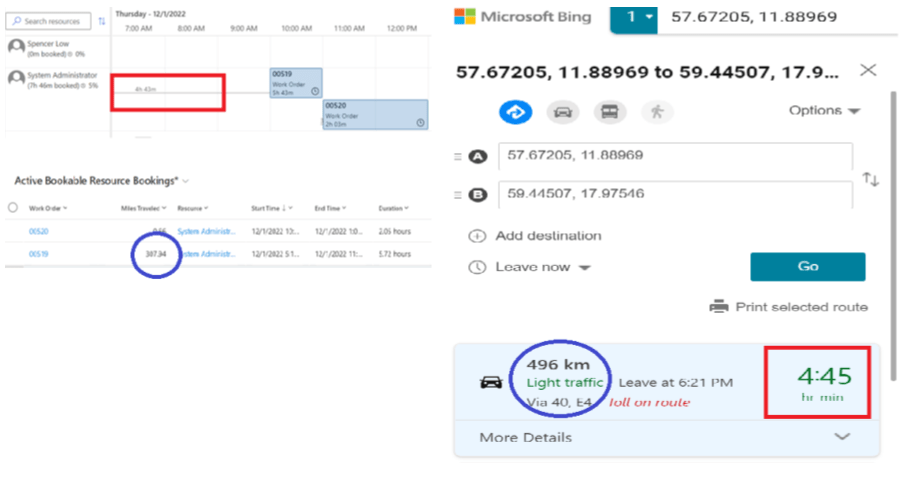
When you set the Start Location to the Organizational Unit address the Miles Travelled and the Travel Duration of the first work order (WO # 00519, with Service Location 1 address) is calculated from the Start Location which is the OU address (4h 43m). Then the subsequent address (for the second WO # 00520, with Service Location 2) is automatically calculated from the previous work orders service location as seen in the below schedule board screenshot (3m).
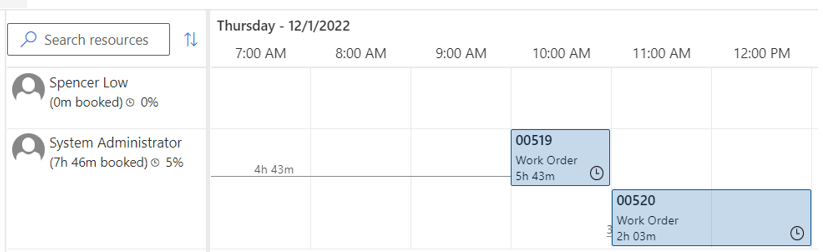
Notice the Miles Traveled calculated which also gets added to the Duration field on the work order –

Resource Address
Similarly, when you set the Start Location to the resource address the Miles travelled and Travel Duration is calculated from the resource address that is currently in our example set to India. As you can see in the scheduling board screenshot the WO # 00523 has a travel time of 76h 26m and the subsequent travel time is reduced to 2m.


Location Agnostic
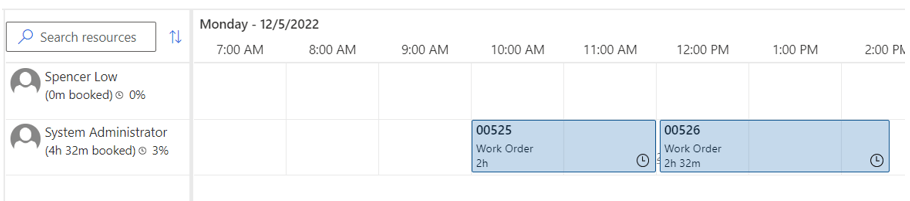
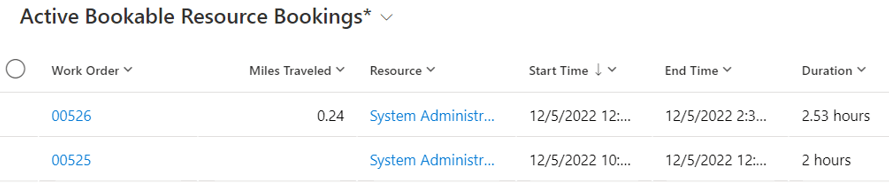
When you set the Start Location to Location Agnostic then the Miles Traveled and Travel Duration is not calculated for the first WO (#00525) of the day however the subsequent WOs get the Miles Traveled (0.24 miles) and Travel Duration (2mins) calculated between Service Location 1 (set on WO # 00525) and Service Location 3 (set on WO # 00526).
Now we know that which record’s address is being considered now we can look at how the Miles Traveled and Travel Duration calculated. Under the Resource Scheduling Parameter configuration, we can setup if the booking is connected to maps, as shown in the screenshot below –
If you set “Connect to Maps” configuration setting to “Yes” and then leave “Map API Key” empty, then by default the application considers Bing Maps.
So, in our Organizational Unit Address example (screenshot below) we can see that the Travel Duration is calculated as 4h 43mins which I cross referenced in Bing Maps gives the approximate value but notice that the Miles Traveled and Travel Duration does not consider the Traffic situations.
Hope this helps!
 Power Platform