User can track the email from D365 App for Outlook to Dataverse with Server Side Synchronization. By default, on the timeline control all tracked emails are displayed based on the “Modified On” field
I had a requirement to show the exact time stamp of the email when it was received in / sent from the Outlook and not based on when the activity is synced to D365 application which basically is last “Modified On”. At some point during the discussion I wanted to ask the user to follow a defined Ways of Working and track the email when it first appeared in their outlook. However this is not a ideal solution and I am sure you can understand why.
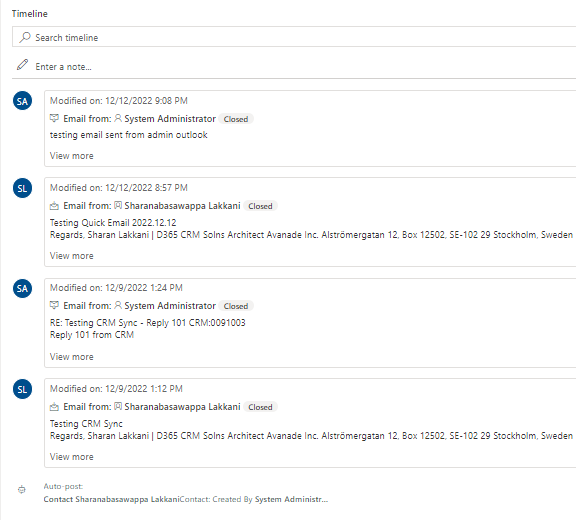
As we can see in the above screenshot, emails are sorted by Modified On and also displays the Modified On in the Email Card form used in timeline control.
I did some digging and found out that the actual sent /received date time stamp is updated in the field called “Actual End”. So, follow the below steps to display the actual date time stamp of the email sent / received and not when the email was tracked –
- Edit the Email Card form to include all the references to Modified On if present
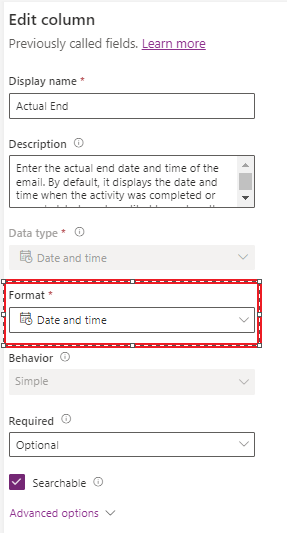
- Edit the format of the Actual End field to Date and Time as by default it is only set to Date
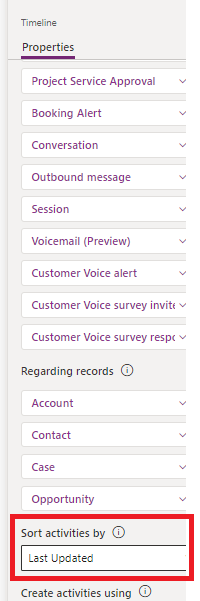
- Update the Timeline control to sort the activities by Actual End instead of Last Updated – Under the Timeline properties
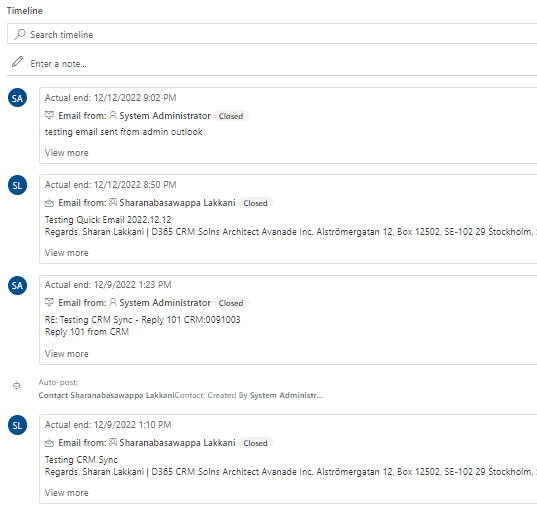
- Once you do the above the Modified On control on the Email card form displayed on the timeline control will be changed to Actual End – Refer the screenshot below and compare the time stamps with the first screenshot in this post
Along the I recollected a few pointers which i think will be a good refresher when talking about Server Side Synchronization with Exchange online –
- To enable Server Side Sync –
- Configure Server Profile Record under Power Platform Admin Center Settings and setup Mailboxes where you can setup Synchronization methods. Once you set up mailbox ensure to Approve Email and Enable Mailbox. You can see the result of enabling mailbox under Alerts on the mailbox record.
- Turn on SSS under the settings in Administration – here you can also setup default synchronization method, Tracking token format, Smart Matching, Enhanced email experience so that email window can open as pop up when working from timeline, File Attachment Sizes…
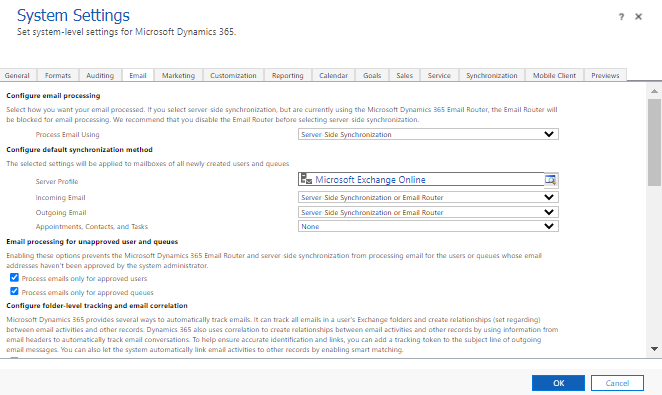
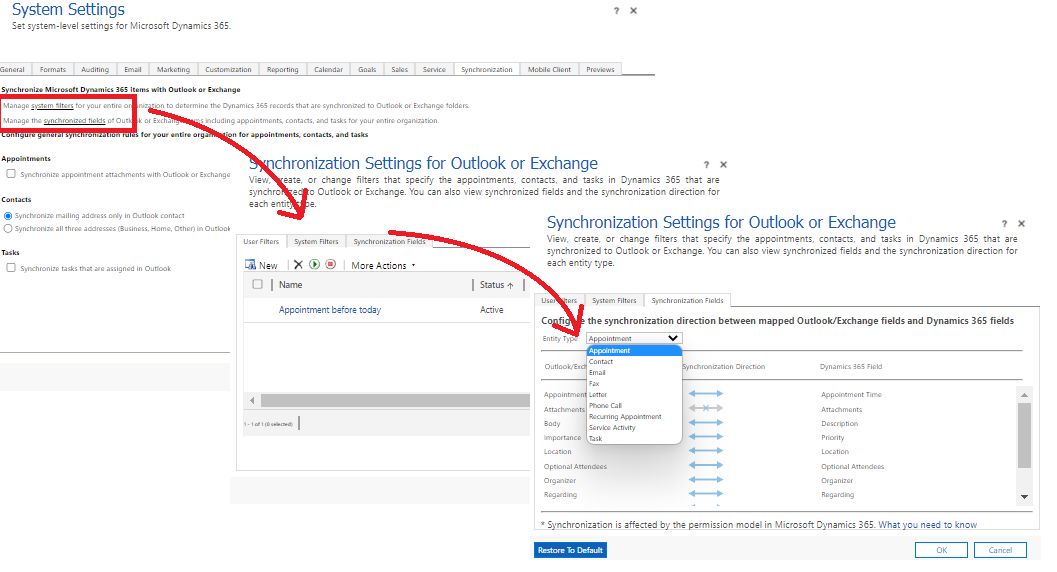
- Under the Same Settings in Administration , navigate to Synchronization tab to setup different filters and field mapping of Contact, Appointment, Tasks, Email between Outlook and Dataverse. Keep in mind, only caveat here is you can customize field mapping for email record.
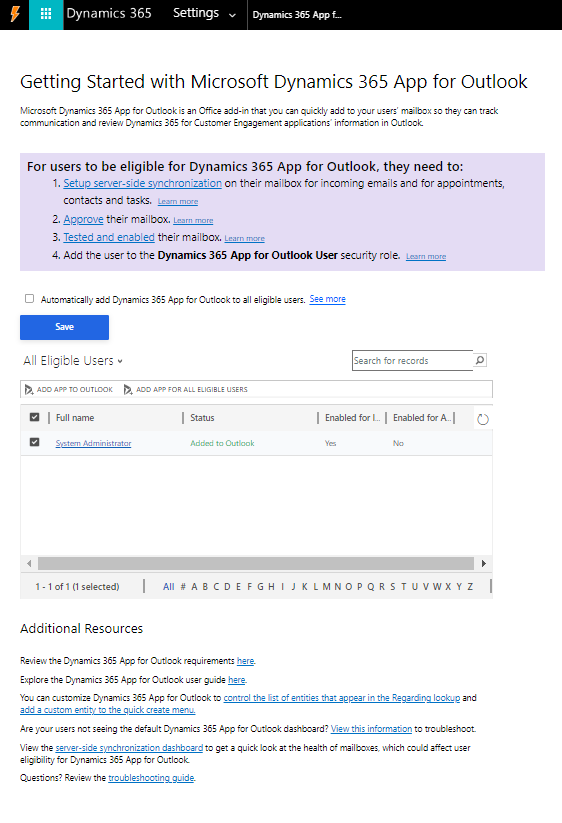
- Once the Server Profile, Mailbox, System Settings are all setup then assign D365 App for Outlook app to the users. From the screenshot it is also evident that this is best place to start as everything is available right here –
- From the above we understand that Actual End holds the actual date time of the activity record however Date Sent and Tracking Token is only set when the activity is sent from the D365.
Happy Learning!!


This post is certainly a time saver for many. Thanks!!
LikeLike